Windows Registry is a central database for application configuration settings and other information required by the applications. Actually there is nothing else you can do with Windows Registry besides reading its data and write data to it ;). In this small tutorial, I'll show you how to read, write and delete Windows Registry.
If you've never open Windows registry, you can see it by running regedit from command line. See figure 1.
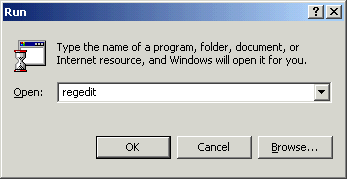
Figure 1. Running Regedit from command line
Ok button opens the Registry Editor. As you can see from Figure 2, registry is a hierarchical data storage for various settings. It has main 5 keys under My Computer.
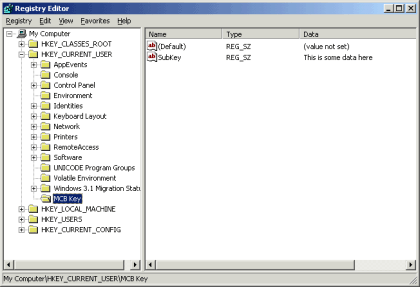
Figure 2. Registry Editor.
.NET Framework Library provides two classes - Registry and RegistryKey to work with the registry. These classes are defined in Microsoft.Win32 namespace. So before using these classes, you need to add reference to this namespace.
The Registry Class
The Registry class contains members to provides access to registry keys. We can define registry keys in the following order.
CurrentUser - Stores information about user preferences.
LocalMachine - Stores configuration information for the local machine.
ClassesRoot - Stores information about types (and classes) and their properties.
Users - Stores information about the default user configuration.
PerformanceData - Stores performance information for software components.
CurrentConfig - Stores non-user-specific hardware information.
DynData - Stores dynamic data.
The registry class has a field corresponding to each of these key types. The Registry class members are described in the following table.
| ClassesRoot |
Returns a RegistryKey type which provides access to HKEY_CLASSES_ROOT key. |
| CurrentConfig |
Returns a RegistryKey type which provides access to HKEY_CURRENT_CONFIG key. |
| CurrentUser |
Returns a RegistryKey type which provides access to HKEY_CURRENT_USER key. |
| DynData |
Returns a RegistryKey type which provides access to HKEY_DYN_DATA key. |
| LocalMachine |
Returns a RegistryKey type which provides access to HKEY_LOCAL_MACHINE key. |
| PerformanceData |
Returns a RegistryKey type which provides access to HKEY_PERFORMANCE_DATA key. |
| Users |
Returns a RegistryKey type which provides access to HKEY_USERS key. |
For example, if you want to access HKEY_LOCAL_MACHINE key, you need to call Registry.LocalMachine member which returns a RegistryKey type.
RegistryKey pRegKey = Registry.LocalMachine;
The RegistryKey Class
The RegistryKey class contains members to add, remove, replace, and read registry data. Some of its common methods and properties are defined in the following table.
| Properties |
Description |
| Name |
Represents the name of the key. |
| SubKeyCount |
Represents the count of subkeys at the base level, for the current key. |
| ValueCount |
Represents the count of values in the key. |
Methods
| Method |
Description |
| Close |
Close the key |
| CreateSubKey |
Creates a new subkey if not exists, otherwise opens an existing subkey. |
| DeleteSubKey |
Deletes the specified subkey. |
| DeleteSubKeyTree |
Deletes a subkey and any children. |
| DeleteValue |
Deletes the specified value from a key. |
| GetSubKeyNames |
Returns an array of strings that contains all the subkey names. |
| GetValue |
Returns the specified value. |
| GetValueNames |
Retrieves an array of strings that contains all the value names associated with this key. |
| OpenSubKey |
Opens a subkey. |
| SetValue |
Sets the specified value. |
Adding a Key and Value to Registry
Ok, in our sample example, let's see how to use these methods to add, remove and update keys and their values.
We'll add a key MCBInc\with data NET Developer. After addition, Registry would look like figure 3.
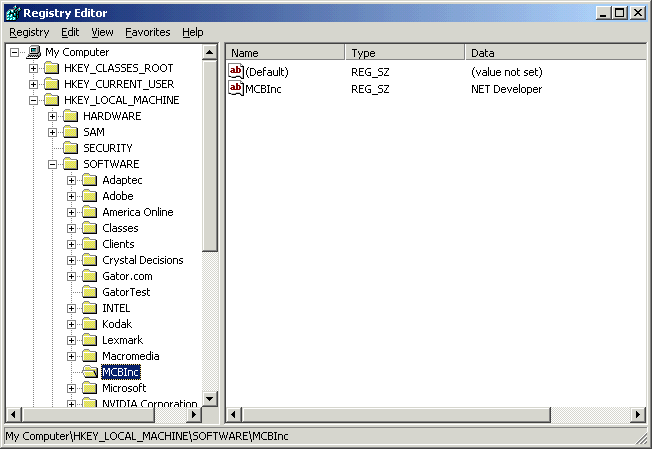
Figure 3: Registry after addition.
You use CreateSubKey to add a new key to the Registry and call SetValue method to write a value and key. The following code does this for us.
' Create a new key under HKEY_LOCAL_MACHINE\Software as MCBInc
Dim key As RegistryKey = Registry.LocalMachine.OpenSubKey("Software", True)
' Add one more sub key
Dim newkey As RegistryKey = key.CreateSubKey("MCBInc")
' Set value of sub key
newkey.SetValue("MCBInc", "NET Developer")
Retrieving Data from the Registry
Ok, in our sample example, let's see how to use these methods to add, remove and update keys and their values.
GetValue method returns the value of a subkey in the form of Object. In the following example, I read value of CenteralProcessor\0 subkey and write to the console.
' Retrieve data from other part of the registry
' find out your processor
Dim pRegKey As RegistryKey = Registry.LocalMachine
pRegKey = pRegKey.OpenSubKey("HARDWARE\\DESCRIPTION\\System\\CentralProcessor\\0")
Dim val As Object = pRegKey.GetValue("VendorIdentifier")
Console.WriteLine("The central processor of this machine is:" + val)
Deleting Data
The DeleteValue method can be used to delete value of a subkey. DeleteSubKey deletes the defined subkey. DeleteSubKey delete the subkey with its data.
Dim delKey As RegistryKey = Registry.LocalMachine.OpenSubKey("Software", True)
delKey.DeleteValue("MCBInc")
Dim delKey As RegistryKey = Registry.LocalMachine.OpenSubKey("Software", True)
delKey.DeleteSubKey("MCBInc")
Source Code
Here is the entire source code.
Imports System
Imports Microsoft.Win32
Module Module1
Sub Main()
' Create a new key under HKEY_LOCAL_MACHINE\Software as MCBInc
Dim key As RegistryKey = Registry.LocalMachine.OpenSubKey("Software", True)
' Add one more sub key
Dim newkey As RegistryKey = key.CreateSubKey("MCBInc")
' Set value of sub key
newkey.SetValue("MCBInc", "NET Developer")
' Retrieve data from other part of the registry
' find out your processor
Dim pRegKey As RegistryKey = Registry.LocalMachine
pRegKey = pRegKey.OpenSubKey
("HARDWARE\\DESCRIPTION\\System\\CentralProcessor\\0")
Dim val As Object = pRegKey.GetValue("VendorIdentifier")
Console.WriteLine("The central processor of this machine is:" + val)
' Delete the key value
Dim delKey As RegistryKey = Registry.LocalMachine.OpenSubKey("Software", True)
delKey.DeleteSubKey("MCBInc")
End Sub
End Module