The WPF Toolkit released in June 2009 comes with a data visualization assembly called System.Windows.Controls.DataVisualization.Toolkit.dll that hosts the charting functionality in WPF. This article demonstrates how to draw line charts using the WPF Toolkit.
Note: This article is written by using the WPF Toolkit June 2009 that you can download from here: WPF Toolkit - Release: WPF Toolkit June 2009. This toolkit may be a part of WPF in near future versions.
Adding WPF Toolkit Reference
Before you can use any charting related functionality in a WPF application, you must download the WPF Toolkit. After that you need to add a reference to an assembly.
To add a reference, right click the References folder of your project in Solution Explorer and select Add Reference. This action will open the Add Reference dialog as you can in the following Figure 1. On this dialog, select Browse option and browse the System.Windows.Controls.DataVisualization.Toolkit.dll assembly from the folder where you installed the WPF Toolkit. This assembly resides in the Binaries folder.
Tip: If you do not want to download WPF Toolkit, you can download the attached project and copy WPFToolkit.dll and System.Windows.Controls.DataVisualization.Toolkit.dll assemblies from this project to the bin folder of your project and add reference.
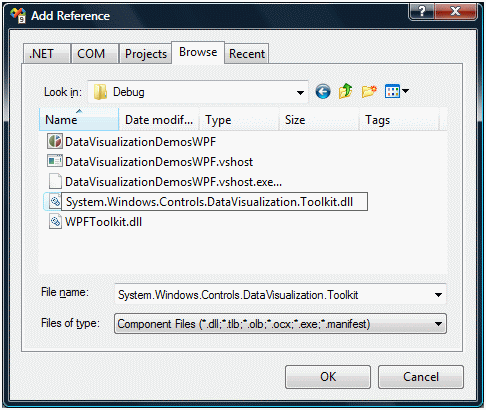
Figure 1
Once you add the reference, you will see the System.Windows.Controls.DataVisualization.Toolkit added to your References dialog as you see in Figure 2.
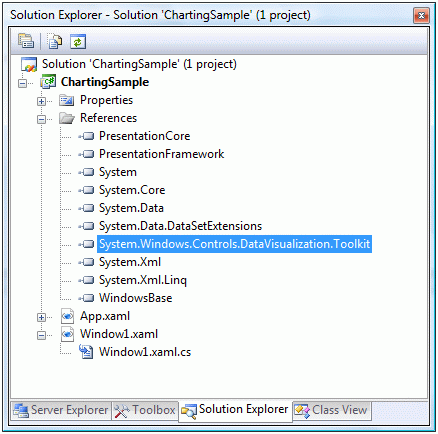
Figure 2
Now, the next step is to import the System.Windows.Controls.DataVisualization.toolkit and the System.Windows.Controls.DataVisualization.Charting namespaces to the page. Once you type xmlns= in your page, you will see these namespaces in the Intellisense. Select and add both of them to your page as you can see in Figure 3.
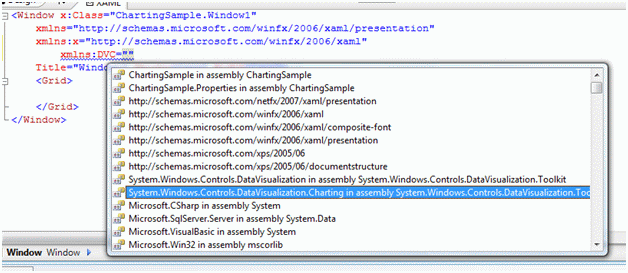
Figure 3
The final reference added to the page looks like following. As you can see here, I added name of this reference to ToolkitRef.
xmlns:DV="clr-namespace:System.Windows.Controls.DataVisualization;assembly=System.Windows.Controls.DataVisualization.Toolkit"
xmlns:DVC="clr-namespace:System.Windows.Controls.DataVisualization.Charting;assembly=System.Windows.Controls.DataVisualization.Toolkit"
Now you will see DVC in your page and once you select it, you will notice all Charting related elements added to the Intellisense. To add a Chart control to your page, just select the Chart control from the list. The list of charting related elements looks like Figure 4.
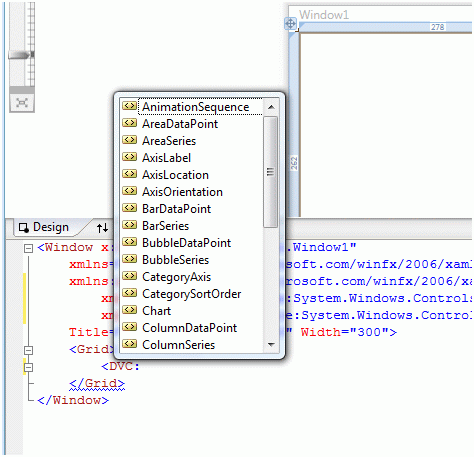
Figure 4
Creating a Chart
The Chart element represents a WPF Chart control in XAML.
< DVC:Chart></DVC:Chart>
The code snippet in Listing 1 creates a Chart and sets its width, height, and background properties of the Chart control. The Title and LegendTitle properties represent the title of the chart and the title of legend.
<DVC:Chart Name="mcChart"
Width="400" Height="250"
Background="YellowGreen"
Foreground="DarkBlue"
Title="Area Chart"
LegendTitle="Month Rating" />
Listing 1
The output of Listing 1 looks like Figure 5.
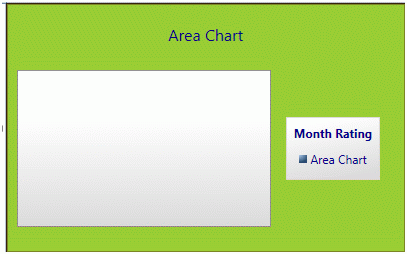
Figure 5
Chart Types
The Series attribute of the Chart element is used to create a chart type. If you see in Figure 6, you will notice BarSeries, ColumnSeries, LineSeries, PieSeries, AreaSeries and ScatterSeries attributes and based on the attribute, the chart will be created.
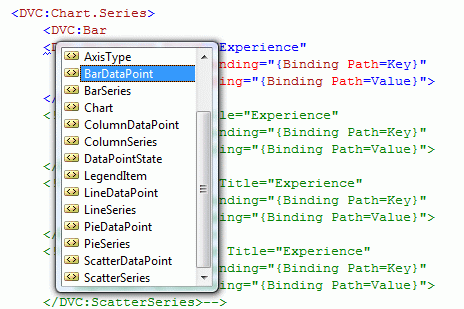
Figure 6
Line Chart
The code snippet in Listing 2 creates a line chart by setting Chart.Series to LineSeries. As you may see, the binding is occurred on Key and Value fields of a data source.
<DVC:Chart Canvas.Top="80" Canvas.Left="10" Name="mcChart"
Width="400" Height="250"
Background="LightSteelBlue">
<DVC:Chart.Series>
<DVC:LineSeries Title=" Monthly Count"
IndependentValueBinding="{Binding Path=Key}"
DependentValueBinding="{Binding Path=Value}">
</DVC:LineSeries>
</DVC:Chart.Series>
</DVC:Chart>
Listing 2
The code snippet in Listing 3 creates a collection in KeyValuePair form and sets the ItemsSource property of the chart series. Same data can be used for other chart types.
Private Sub LoadLineChartData()
DirectCast(mcChart.Series(0), LineSeries).ItemsSource = New KeyValuePair(Of DateTime, Integer)() {New KeyValuePair(Of DateTime, Integer)(DateTime.Now, 100), New KeyValuePair(Of DateTime, Integer)(DateTime.Now.AddMonths(1), 130), New KeyValuePair(Of DateTime, Integer)(DateTime.Now.AddMonths(2), 150), New KeyValuePair(Of DateTime, Integer)(DateTime.Now.AddMonths(3), 125), New KeyValuePair(Of DateTime, Integer)(DateTime.Now.AddMonths(4), 155)}
End Sub
Listing 3
The output looks like Figure 7.
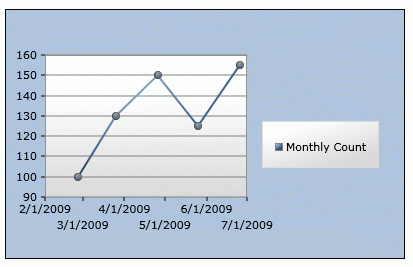
Figure 7
Summary
This tutorial discusses how to use WPF Toolkit to create a line chart in WPF using VB.NET.